
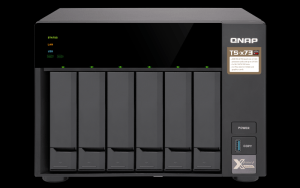
As someone who’s been a geek most of his life, the last few days have been a stressful period. As a photographer, I store my images on a network-attached storage drive or NAS drive with RAID 1 hard disks.
My previous QNAP TS-420 has been running 24×7 for five years now and performed flawlessly but is starting to get a little long in the tooth in electronic years. Like a dog who ages seven years for every actual year, electronics are probably worse.
Initially, my old NAS just stored primarily financial documents which are not much of a burden on the drive. Photo images are getting larger with every new release of a camera. My RAW images have grown from 20 MB to 50 MB in size. Even JPG’s are now approaching 20 MB in size.
The TS-420 has worked well storing electronic images but has to work extra hard to read and write the huge RAW files. LightRoom would pause for a few seconds every time it had to deal with one of the files.
Uploading 1,000 RAW images from a CFexpress card would take five minutes to transfer from the card on my desktop to the network drive. I finally decided to upgrade my file server to the next performance level and reduce the ever-increasing delays.
My comfort level with QNAP NAS drives led me to pick a six-bay TS-673 NAS drive with 4 GB of RAM and 16 GB additional on order. The transition was a little bit of a struggle but well worth it.
I had approximately three terabytes stored on the two RAID 1 volumes and hoped to move the four 4TB drives to my new NAS enclosure. It took almost two days to back up all of the files to an external 10TB USB drive. Then I spent another day comparing the files on the external drive to the files on the NAS drive.
Holding my breath, I moved the four drives, plugged them into the new enclosure, and pressed the power button. Luckily, the new drive didn’t erase my files, and after a couple of hours of updating apps, the new NAS drive was online.
Response time in LightRoom is now almost instantaneous as the faster file server can read and write image files so much quicker.
You might be asking yourself, why aren’t the files stored on the local desktop computer? RAID is the simple answer.
RAID is Redundant Array of Inexpensive Drives, and there are multiple versions of RAID. I use RAID 1, which is the basic version. RAID 1 requires pairs of drives in what is known as a volume.
When a picture or any file is stored on the NAS drive, it is written to both drives in the volume pair. Duplicate file storage is handled behind the scene with the NAS itself.
If an error or failure occurs, the NAS automatically switches to the other drive without missing a beat. RAID 1 usage guarantees that short of someone taking a sledgehammer to the drive, it is virtually impossible to lose something.
In the five years with my previous QNAP drive, I experienced one hard drive failure, and beyond the beeping warning from the NAS, I wouldn’t have known anything had occurred.
After the drive failure, I simply removed the bad drive and installed a new drive. Plugging the new drive into the enclosure started the rebuild. I didn’t even have to power off the unit, and the NAS formatted the new drive and copied all of the files from the other drive to it automatically.
I’ve only used the Seagate Iron Wolf series of hard disks designed for NAS-style drives. At about 100 bucks for a 4 TB Iron Wolf, it’s not that expensive and works well.
Consider moving your pictures elsewhere if you currently store your pictures on the computer’s primary disk drive. A Windows operating system computer constantly uses the “C” drive to read and write files. A hard drive is like anything else. The more you use it, the more likely it is to fail.
Most PCs allow the installation of a secondary hard disk. Moving your pictures to the secondary hard disk helps ensure that your precious photos are better protected. The secondary drive is only accessed when reading or writing image-related files, which significantly reduces the wear on the drive.
Another suggestion is the utilization of Crystal Disk Info. The program analyzes the drives attached to the computer and warns you of failure or impending failure. Crystal Disk Info is a free program and downloadable from https://crystalmark.info/en/download/
 Vegas Camera Guy